I previously posted this in the Discord help channel, but I have not been able to solve the issues yet, so I am posting in full, here. Sorry, this will be a long post, as it contains a lot of background into what I’ve tried.
Any help getting this solved, or pointing me in the right direction, is very much welcome.
PROBLEM
I have a challenge connecting Daisy to Windows… but it seems to be the opposite of what others have encountered.
Setup:
- Windows 11, latest GA build and patches. USB C going to an Expansion Box with (as Surface only has USB C)
- SetupSTM32CubeProgrammer_win64
- Installed and run Zagdig
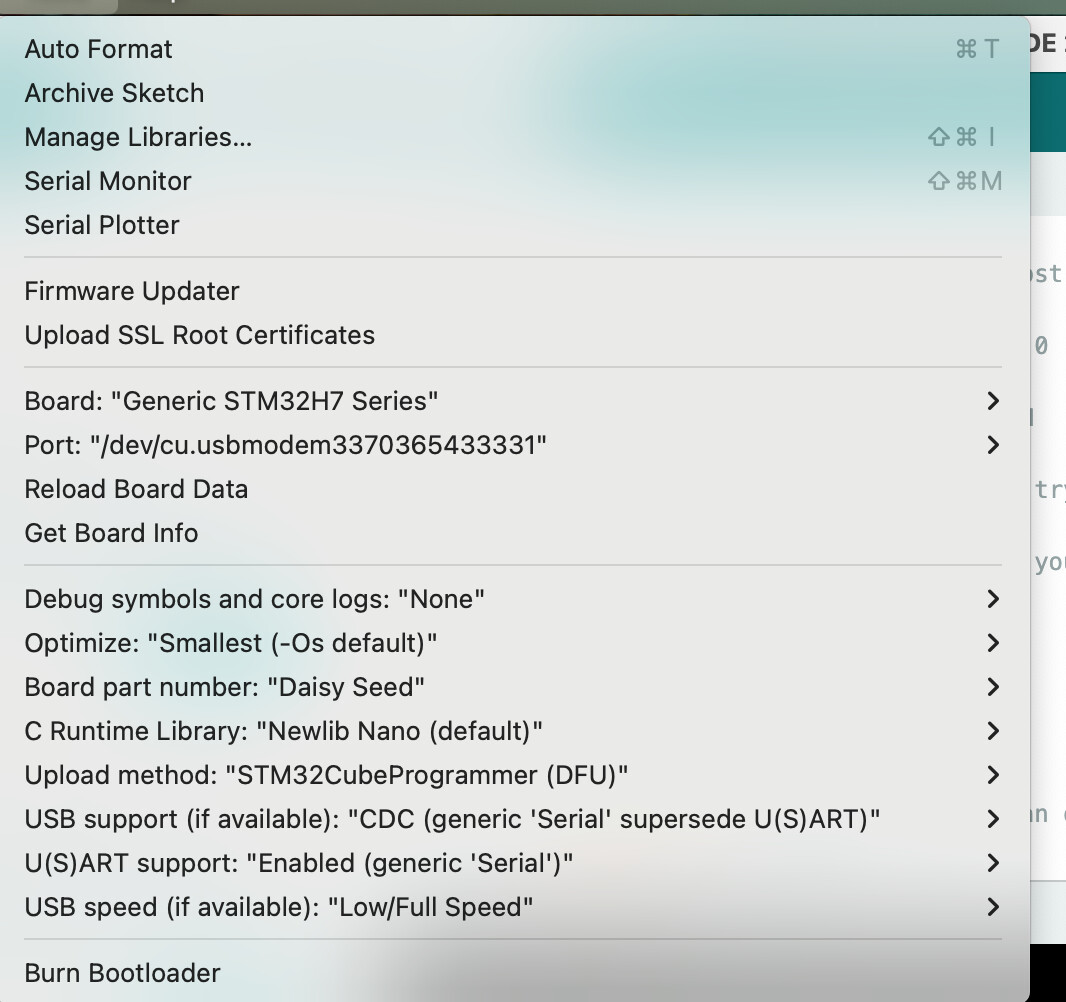
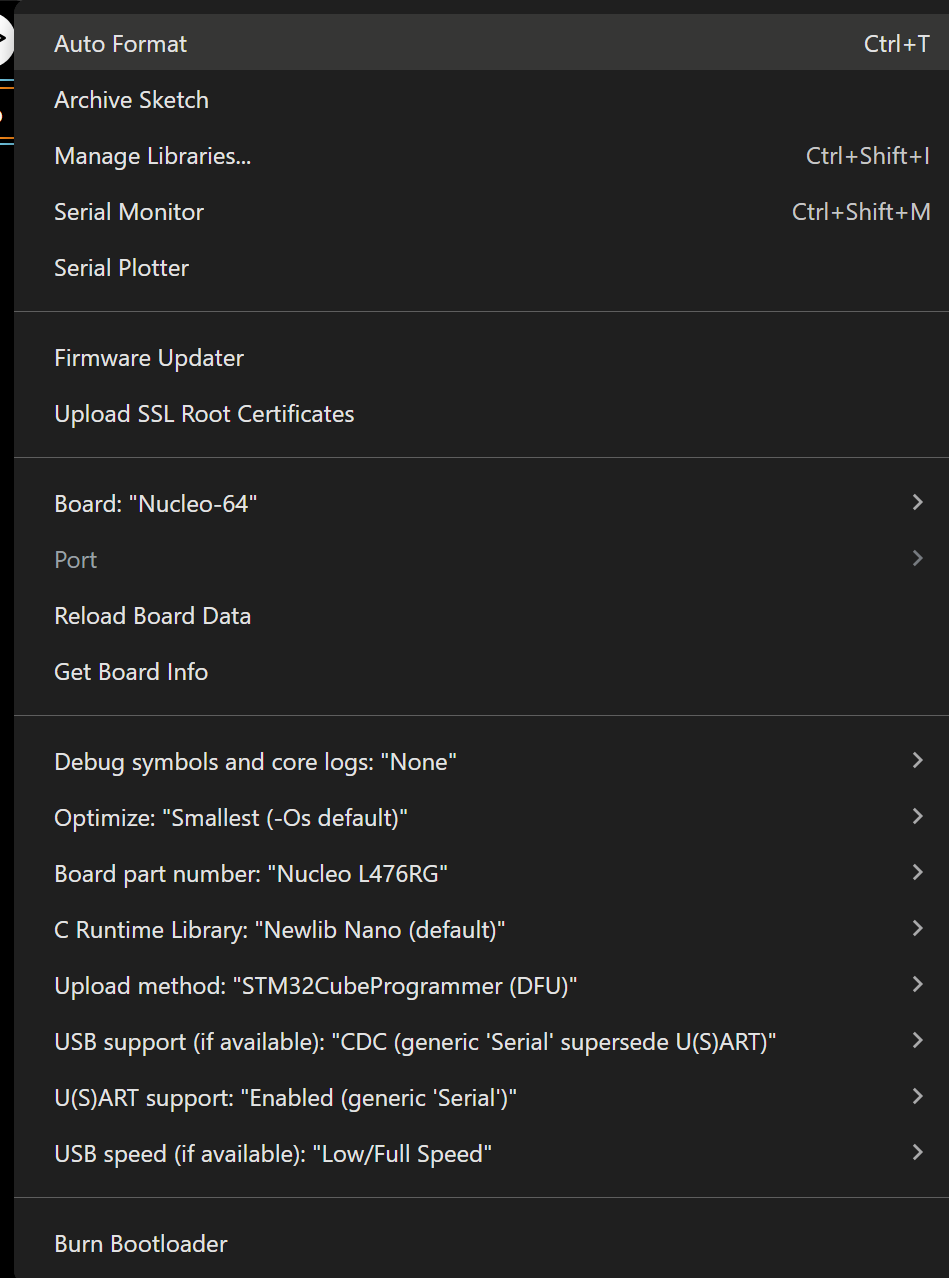
- I have installed the board definitions and DaisyDuino library, configured based on the instructions on the DaisySeed installation page. See the config image for the settings of the board (image 1)
Detailed Problem Statement
- When I first plugged in the DS to my Window 11 USB (Surface Studio Laptop), I got a com port (port 5.) All good. The DS had a blinking LED app already installed, as the right LED was blinking.
- However, the DS was not being detected when I put it into upload mode.
- Being a known issue, I fired up Zadig and following the instructions to get the DFU over the WindowsUSB (see image). And vola! I was able to upload the blinking light demo (though I changed the speed so I could check the results.)
- However, when the device returns to ‘run’ mode, the blinking lights did not blink and - more importantly - it is no longer connecting to USB or finding a com port.
- Running Zadig again reveals that the DS is not opening up any USB port.
- Putting DS into boot mode results in a USB ‘chiome’ on Windows and I can upload code again, but no port shows (weird)
Initial Remediation Steps:
Problem
When I first plugged in the DS to my Window 11 USB (Surface Studio Laptop), I got a com port (port 5.) All good. The DS had a blinking LED app already installed, as the right LED was blinking.
However, the DS was not being detected when I put it into upload mode.
Being a known issue, I fired up Zadig and following the instructions to get the DFU over the WindowsUSB (see image). And vola! I was able to upload the blinking light demo (though I changed the speed so I could check the results.)
However, when the device returns to ‘run’ mode, the blinking lights did not blink and - more importantly - it is no longer connecting to USB or finding a com port.
Running Zadig again reveals that the DS is not opening up any USB port.
Putting DS into boot mode results in a USB ‘chiome’ on Windows and I can upload code again, but no port shows (weird)
REMEDIATION EFFORTS SO FAR
- Disconnected DS and reconnected on differetn USB port.
- Rebooted laptop
- Replaced USB extension box with another
- Tried a different laptop
- Checked settings to ensure I have USB serials coms setup (all good)
- Reinstalled WinUSB driver
- Reinstalled SetupSTM32CubeProgrammer_win64
- Re-rechecked all board setting
I’m stuck. I have read that DS can have issues with USB 3. The only device I have with a non USBC socket uses USB3.  Any workarounds or thoughts on that?
The biggest brain stretcher is that the DS did work prior to me sending it the blink code.
Initial Responses
1.tele_player 7/10/25, 11:20 PM
I suspect that the Blink image running on a factory-new Daisy Seed has USB serial code included, so it appears as a COM port, maybe for some automated verification in manufacturing? But, the source code Blink (in DaisyExamples) doesn’t have USB code, so once you modify/build/upload a new Blink, the COM port disappears.
2.DocJoe 7/11/25, 11:18 AM
Ah.. interesting idea. Thank you! So I would need to include a serial library? I did add a Serial.print statement in the loop, but that’s not visible due to com port not being set. Also, the blink is not working.
- tele_player 7/11/25, 11:43 AM
You should only need to set the USB support and U(S)ART support, IIRC.
Second Remeditation Efforts and Tests
Thanks @tele_player . Based on you advice, I began a step by step investigation of the USB settings. The settings were correct, but the tests did reveal some more details… Process for tests:
- Check all Ardunio settings. Appear as correct, with USB support set. See image 1.
- Put DS into boot mode. Hear the ‘USB connect chime’ and application uploads correctly. See image 2,3,4,5.
- USB chime once application has completed uploading. DS is not showing a blinking LED. No com port available.
- Used Zadig to check USB ports. Unknown USB Device (Device Description Request Failed) found. Attempted to set this to WinUSB(v 6.1…) with Zadig. See image 6.
- Setting of Unknown USB Device with Zadig fails. See image 7.
- Attempted setting of Unknown USB Device a second time, with same result.
- Note that the DS is still not showing a Blinking LED, suggesting the application is not running.
- As hail mary, attempted to use Zadig to set Unknown USB Device to libusb-win32, and CDC Usb settings… both failed.
- Repeated steps 1 to 4 above, but with a fresh (non modified) instance of the blink example code. Same results.
- Closed IDE and deleted all temp files.
- Reopened IDE and recompiled as per steps 1-4, with the same results.
- Closed IDE. Disconnected DS.
- Opened Device Manager, located the Unknown USB Device and deleted it. Rebooted device.
- Confirmed in Device Manager and Zadig that Unknown USB device is gone. Image 8.
- Reconnected DS, and opened IDE. Put DS into book mode and DFU FS Mode shows in Device Manager. See image 9.
- Repeated steps 1-4 and same result.
- Rescanned for devices in Device Manager and with Zadig and the Unknown USB Device is back. See image 10.
So… I now know that Unknown USB Device (Device descriptor request failed) is the DS USB, but it is not able to be configured with Zadig.
Images 1 - 5
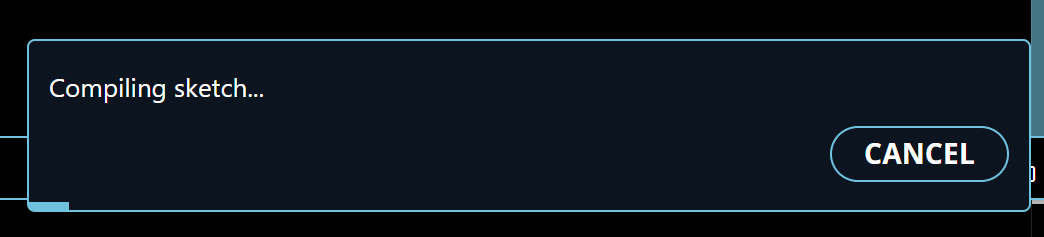
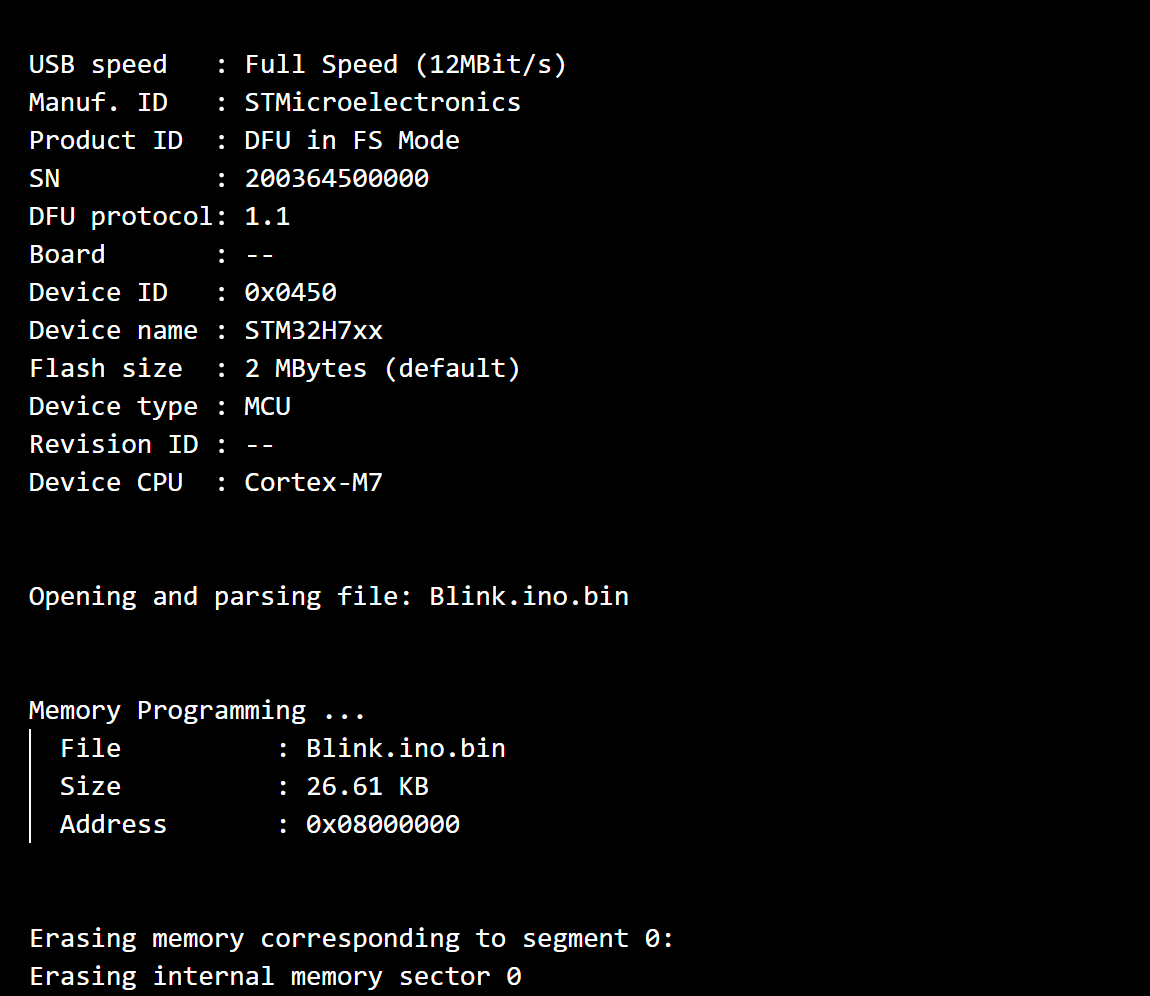
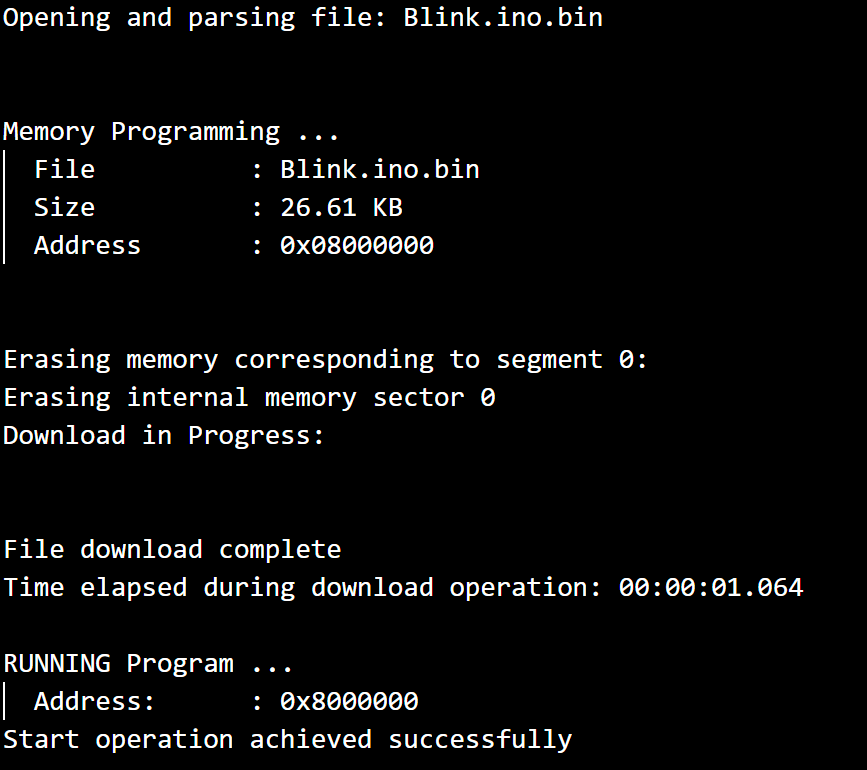
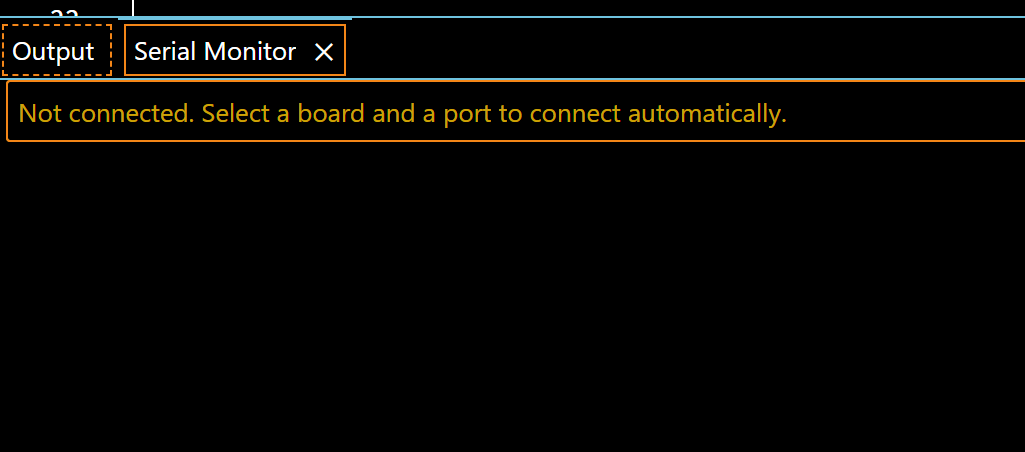
Image 6, 7

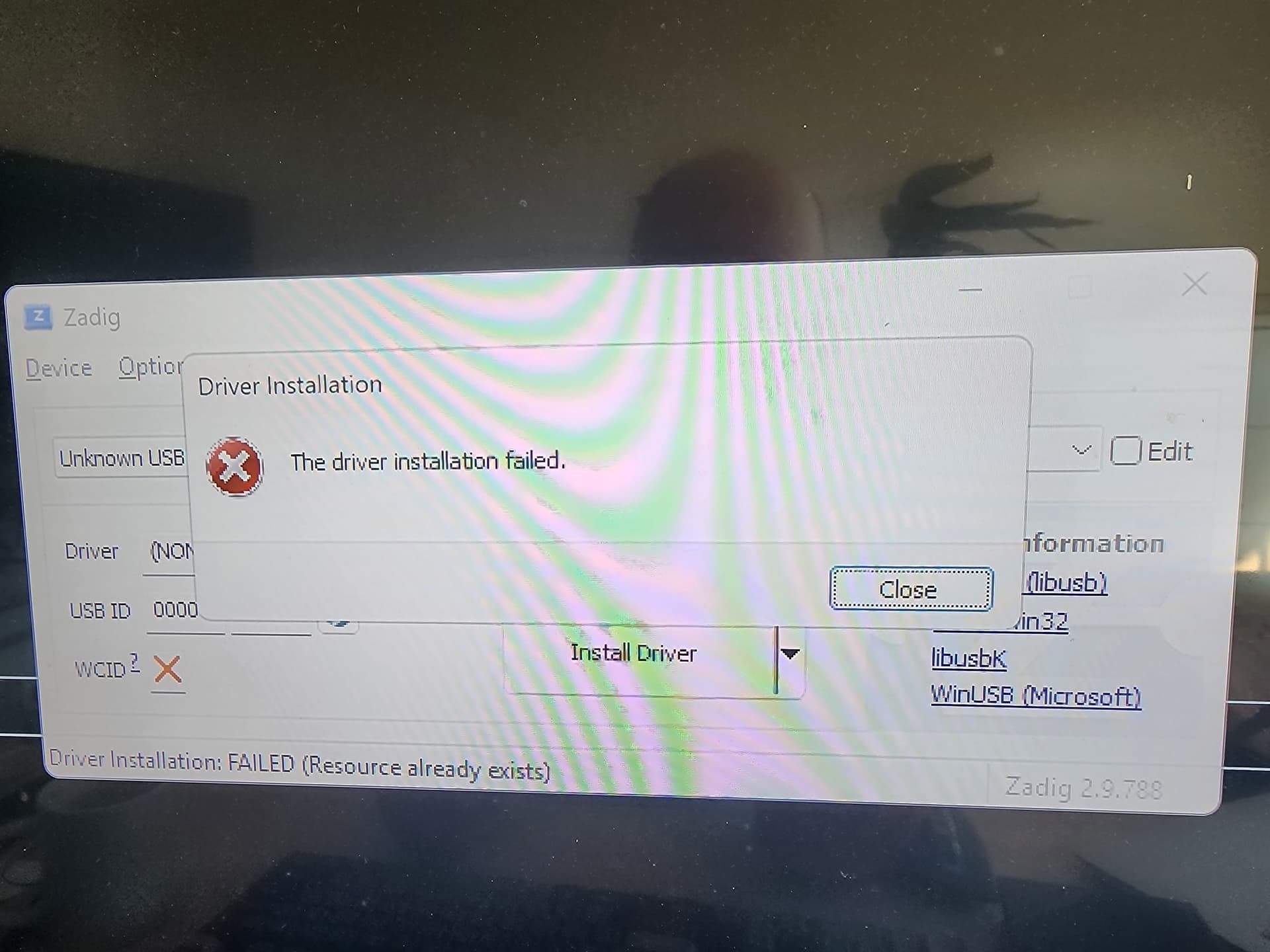
Image 8
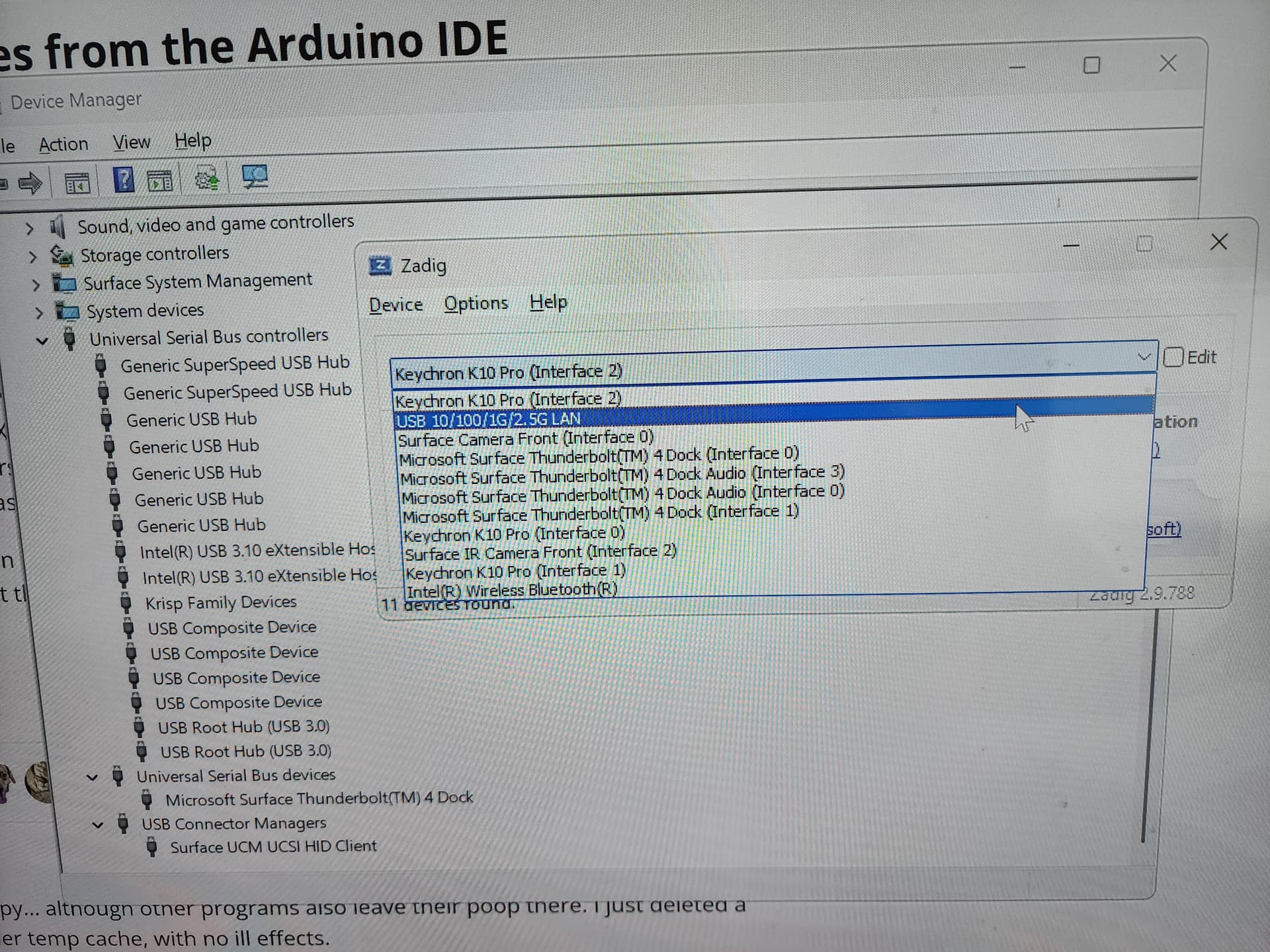
Image 9
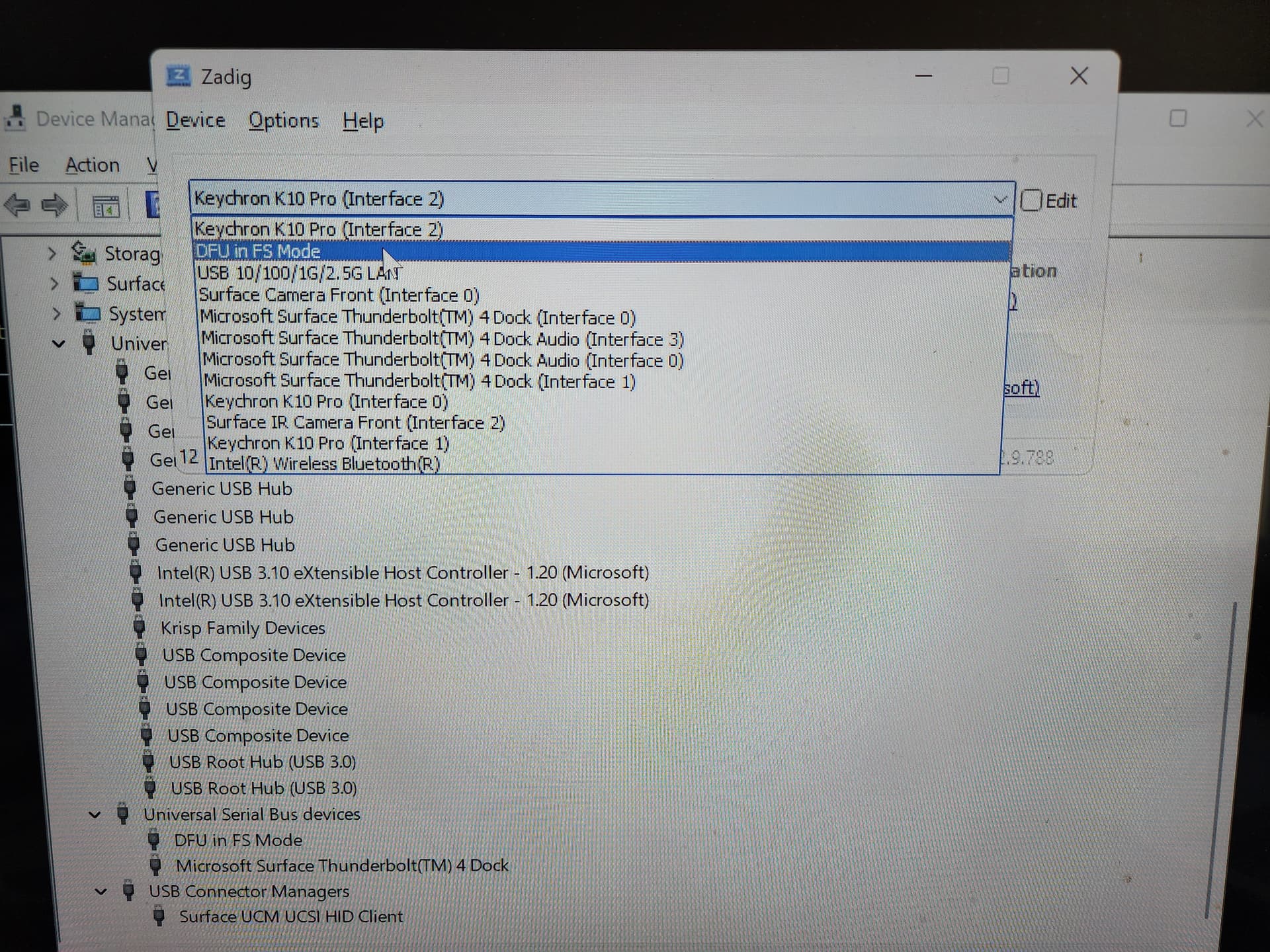
Image 10
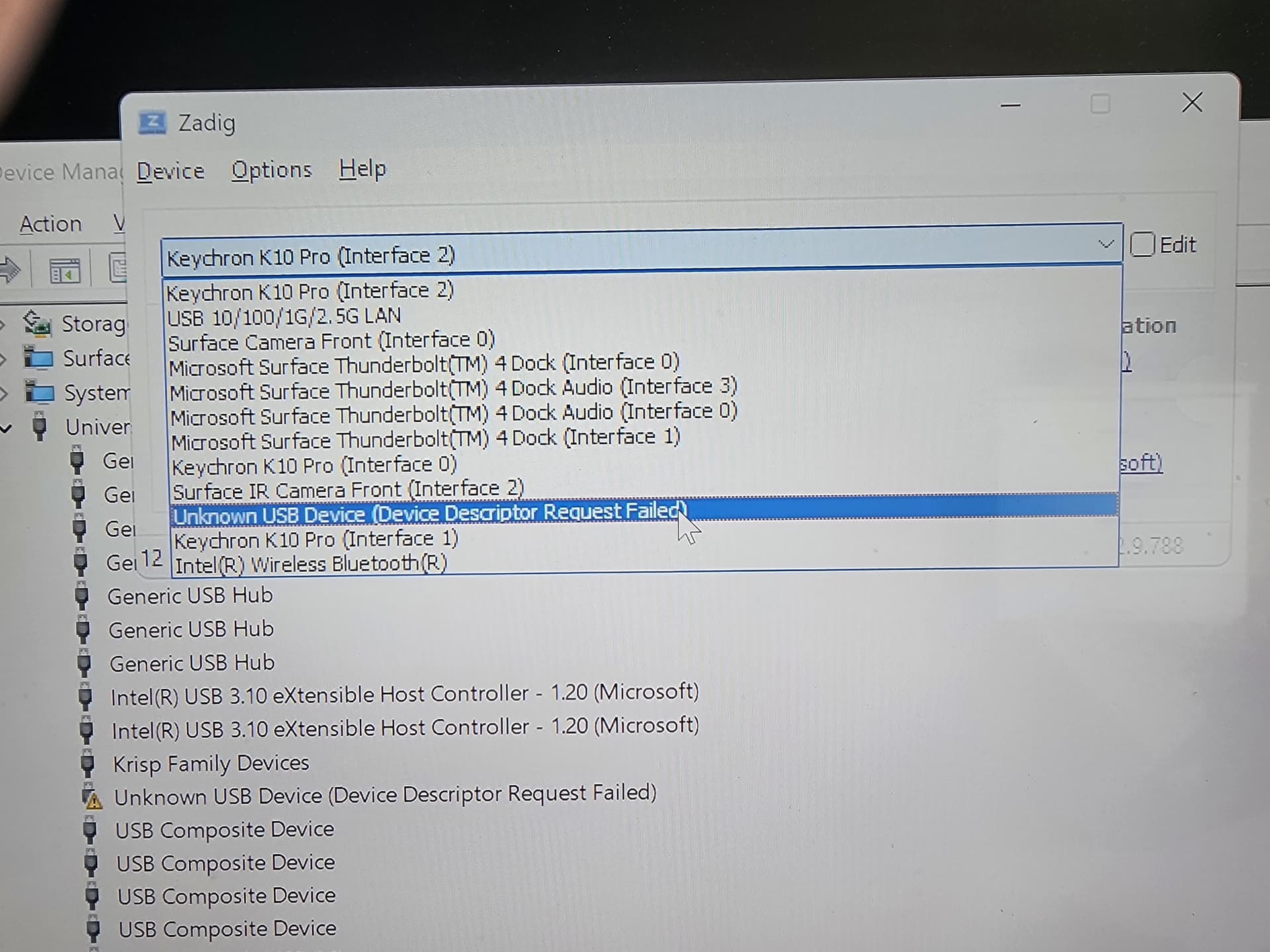
SUMMARY
Sorry for the huge torrent of info. Hopefully someone will spot where I’ve gone wrong and be able to lend a hand.
- Initial USB port was detected (port 3)
- After uploading Blink application via DFU, Windows 11 will not detect the DS
- DFU bootloading still works, but…
- DS seems not to be responding or running the Blink code uploaded